
Best fit
Product ads and launch concepts
Explore a product reveal with text to video. Start with one clear action and compare the result with your campaign brief.
Text to video, directed by you
Create text to video clips with native audio, private outputs, and up to 2K.
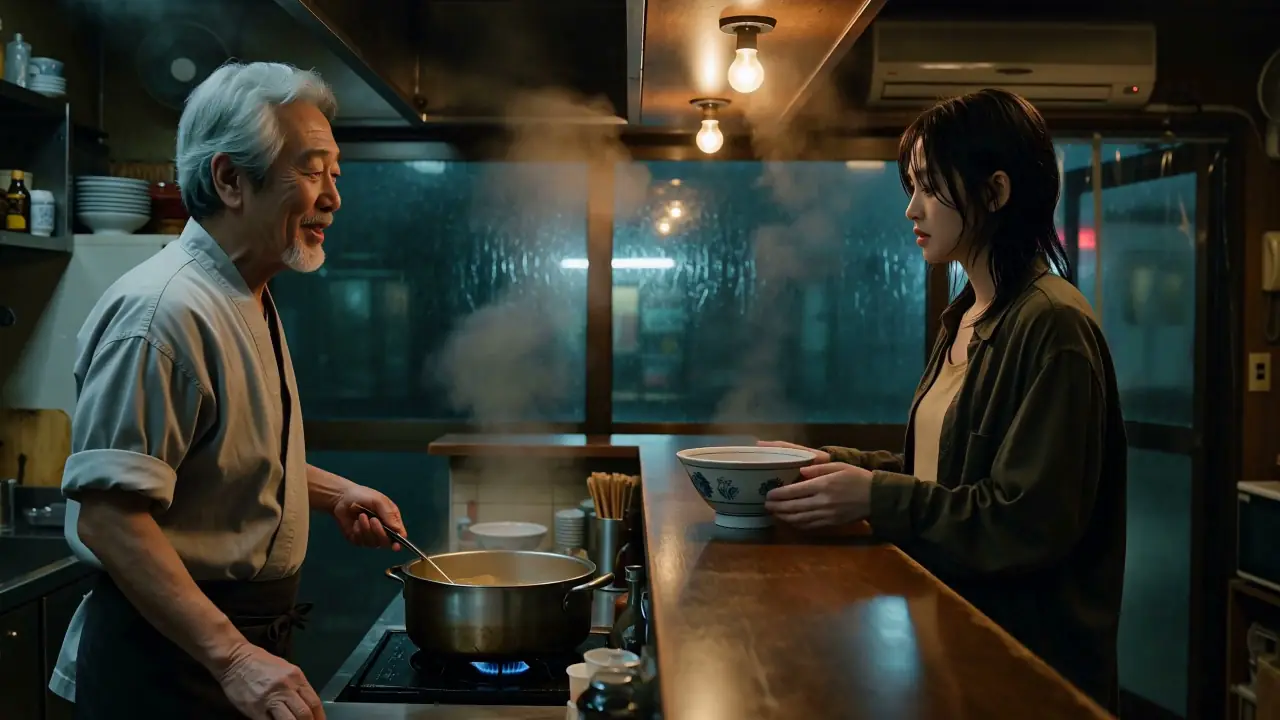
Three ways to start
Text to video starts with the shot you want the audience to see. Describe a subject, an action, and a setting before adding camera or sound instructions. Use the other input modes when a specific existing frame or reference needs to guide the result.
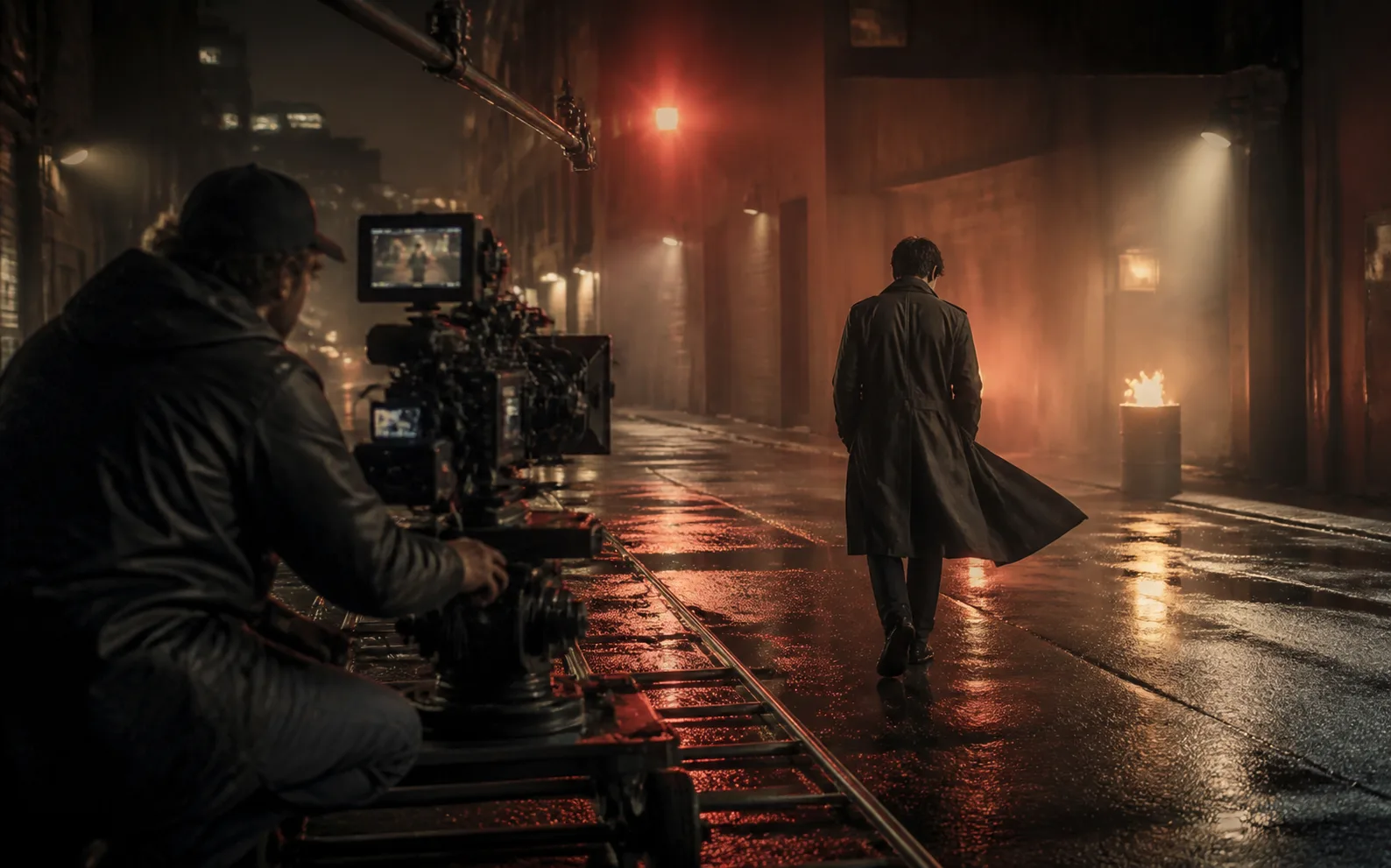
Text to Video
Describe one scene for text to video: a subject, an action, and a setting. Add the camera move you want viewers to follow.
Give your text to video prompt a sound direction, such as rain or quiet room tone. Choose a duration that gives the action time to read.
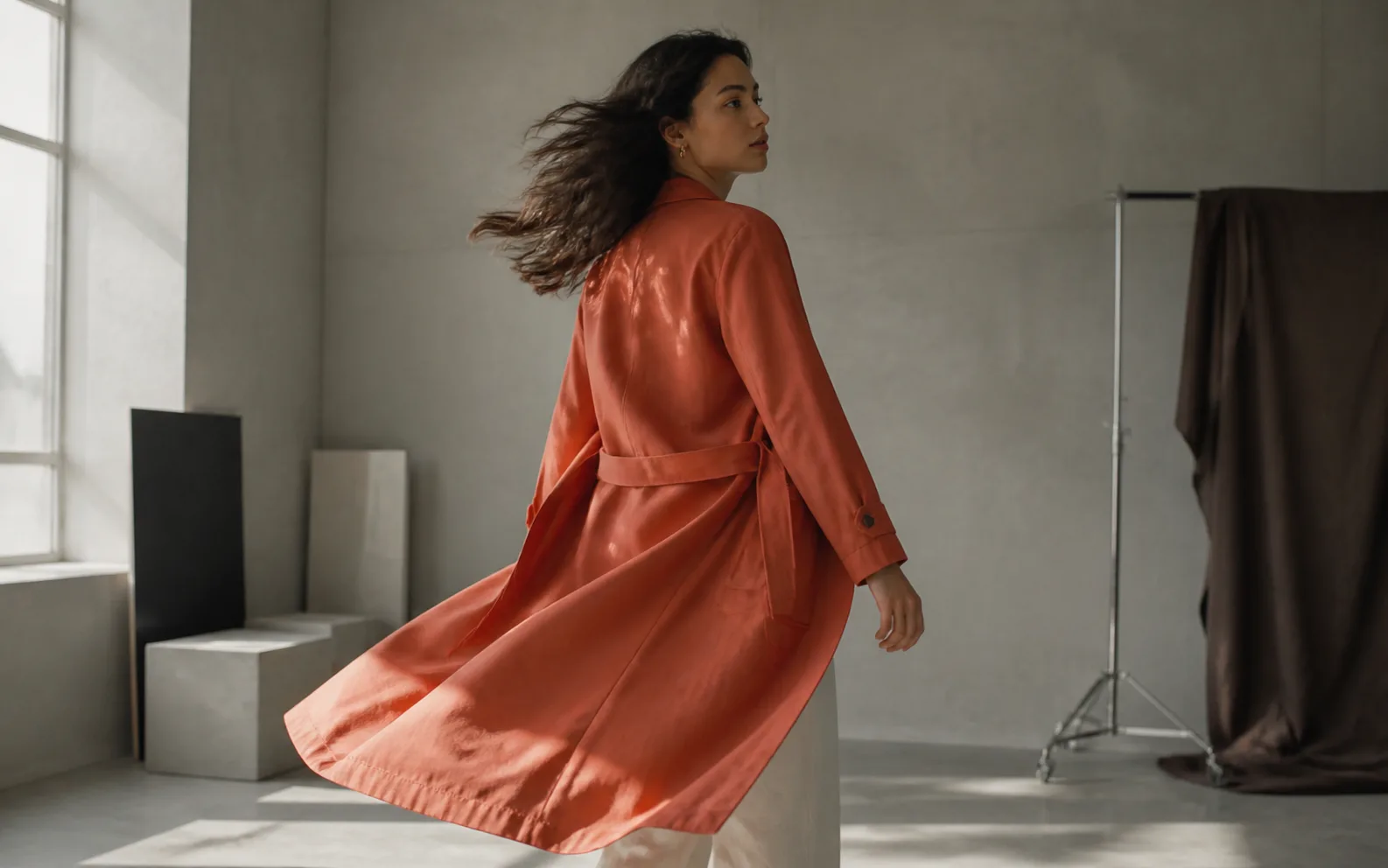
Image to Video
Text to video creates a scene from words. If you already have a product photograph or approved composition, Image mode provides a visual starting point.
Text to video lets you choose the output shape; Image mode follows its first frame. Both workflows accept movement and sound instructions in your prompt.
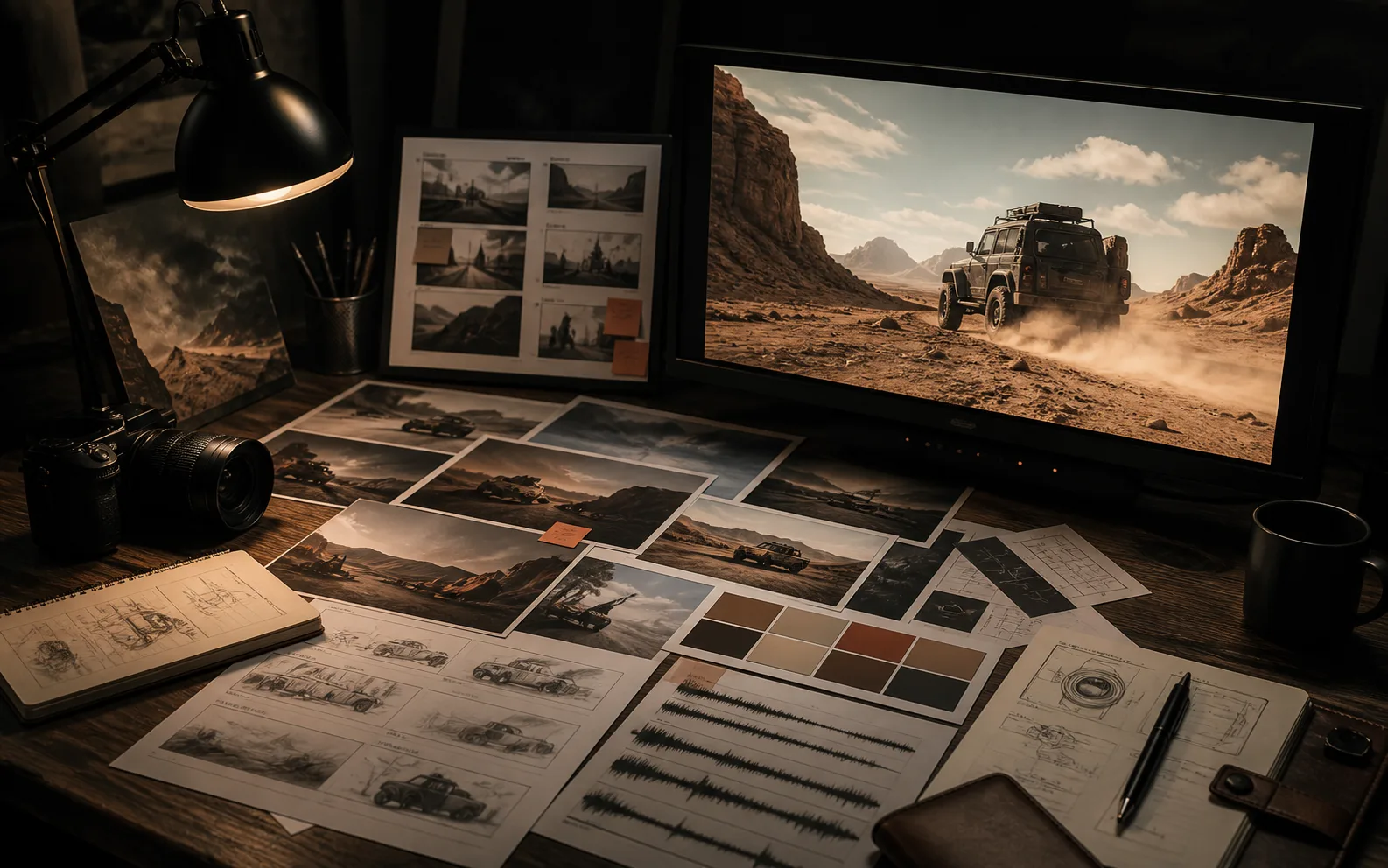
Reference to Video
When a text to video idea needs more guidance, Reference mode can use images, video, or audio to communicate details that words cannot capture.
For a new scene without supplied media, keep text to video simple: your prompt and output settings are enough. Check the estimate before changing modes.
Who it is for
Use text to video for one production question at a time: how a reveal opens, where a camera moves, or what atmosphere supports a story. A focused text to video brief makes each result easier to judge, compare, and place in a larger edit.
Best fit
Explore a product reveal with text to video. Start with one clear action and compare the result with your campaign brief.
Product teams
Give text to video a precise camera move, such as a slow push toward the product. Keep the subject action simple enough to follow.
Product teams
Describe ambience, dialogue, or a musical direction in the same prompt. Listen to the result with the picture to check clarity and timing together.
Product teams
Choose the text to video frame shape before generating. Use a wide, square, or vertical composition that leaves room for the final edit and captions.
Best fit
Build a text to video opening around one recognizable moment. Make the first action clear enough to catch attention on a small screen.
Creators
Choose a text to video duration from 4 to 15 seconds. Give your action room to read without packing several unrelated scenes into one clip.
Creators
Choose 9:16 for a vertical placement. Keep the subject easy to see and leave space for captions or graphics you will add in your editor.
Creators
Return to completed text to video clips in My Creations. Review previous results, download the version you need, and keep notes on your prompt changes.
Best fit
Test a text to video concept before committing to a shoot. Use the clip to discuss pace and staging with your team.
Filmmakers
Choose 768P for an initial text to video experiment or 2K for a larger output. Review the displayed estimate before spending credits on another version.
Filmmakers
Describe the setting, action, lighting, and sound as one coherent scene. Treat the result as a visual experiment when discussing physical staging or camera placement.
Filmmakers
Download your paid text to video output without a site watermark. Review motion, sound, and unwanted changes before including the selected clip in a finished edit.
Four simple steps
Follow the text to video workflow below without leaving this page. Write the scene, set the output, and check the credit estimate. Each text to video attempt should test a clear direction you can evaluate in the finished clip.
Step 1 of 4
Step 2 of 4
Step 3 of 4

Step 4 of 4
24,000+
Reviews
4.9
Average rating
4.8
Recommend H3Run
80,000+
Creators

Maya Chen
Performance marketer
H3Run changed everything for me. I went from waiting on a production handoff to a finished campaign clip from one product still and a short brief.

Alex Voss
Filmmaker
I use H3 Max on H3Run to test blocking and camera rhythm before a shoot. Reference mode is the first time the visual language actually carries through.

Sofia Alvarez
Paid social lead
We ship more H3 Max variants in an afternoon than we used to get from a full production week. The interface is simple and the output is client-ready.

Jordan Hale
YouTube creator
The quality from H3 Max is now essential to my workflow. Native stereo and camera direction stay in the same shot, so channel openers actually feel finished.

Elena Park
Agency producer
H3Run is now how we get client concepts out the door. Every generation stays private, and I can spin ratio variants without another editing round.

Daniel Kim
Short-form creator
H3Run lets me write the motion, the camera, and the sound in one prompt. I stopped bouncing between three tools just to get a 9:16 clip.

Priya Raman
Ecommerce lead
H3 Max keeps the product composition I already paid for. Image to Video gives me motion cuts without rebuilding the hero frame from scratch.

Noah Brooks
Product designer
The H3Run credit estimate before I hit generate is the part I trust. I keep the prompt through login and download a clean 2K clip.

Hannah Cole
Brand designer
I was skeptical, then H3 Max matched the still I already had. The subject stayed recognizable and the download had no watermark.
A text to video prompt should describe one subject, its action, the setting, camera movement, lighting, and sound. Put the most important movement first. If the text to video result misses your intention, change that instruction and compare versions instead of adding several new scenes.
Choose 4, 6, 8, 10, 12, or 15 seconds for text to video generation. Pick enough time for the action to read clearly. A simple reveal may suit a short text to video clip, while a slower camera move may need more time and credits.
Yes. Text to video supports native stereo audio, and your prompt can describe ambience, dialogue, or music direction. Explain which sound belongs to the action rather than listing unrelated effects. Listen to the finished text to video clip and check timing and clarity before using it.
Text to video supports 21:9, 16:9, 4:3, 1:1, 3:4, and 9:16, with 768P or 2K output. Choose the destination format before generating. Text to video uses 25 credits per second at 768P or 40 at 2K, with the reserve shown before submission.
Yes. The login dialog keeps your text to video prompt and settings when you click Generate while signed out. Sign in to continue with the required credits. Completed text to video outputs stay private to your account and can be opened or downloaded from My Creations.
Your next shot starts here
Give the text to video generator one clear scene. Set the duration and format, review the estimate, and turn your direction into a clip you can evaluate.
Create from text